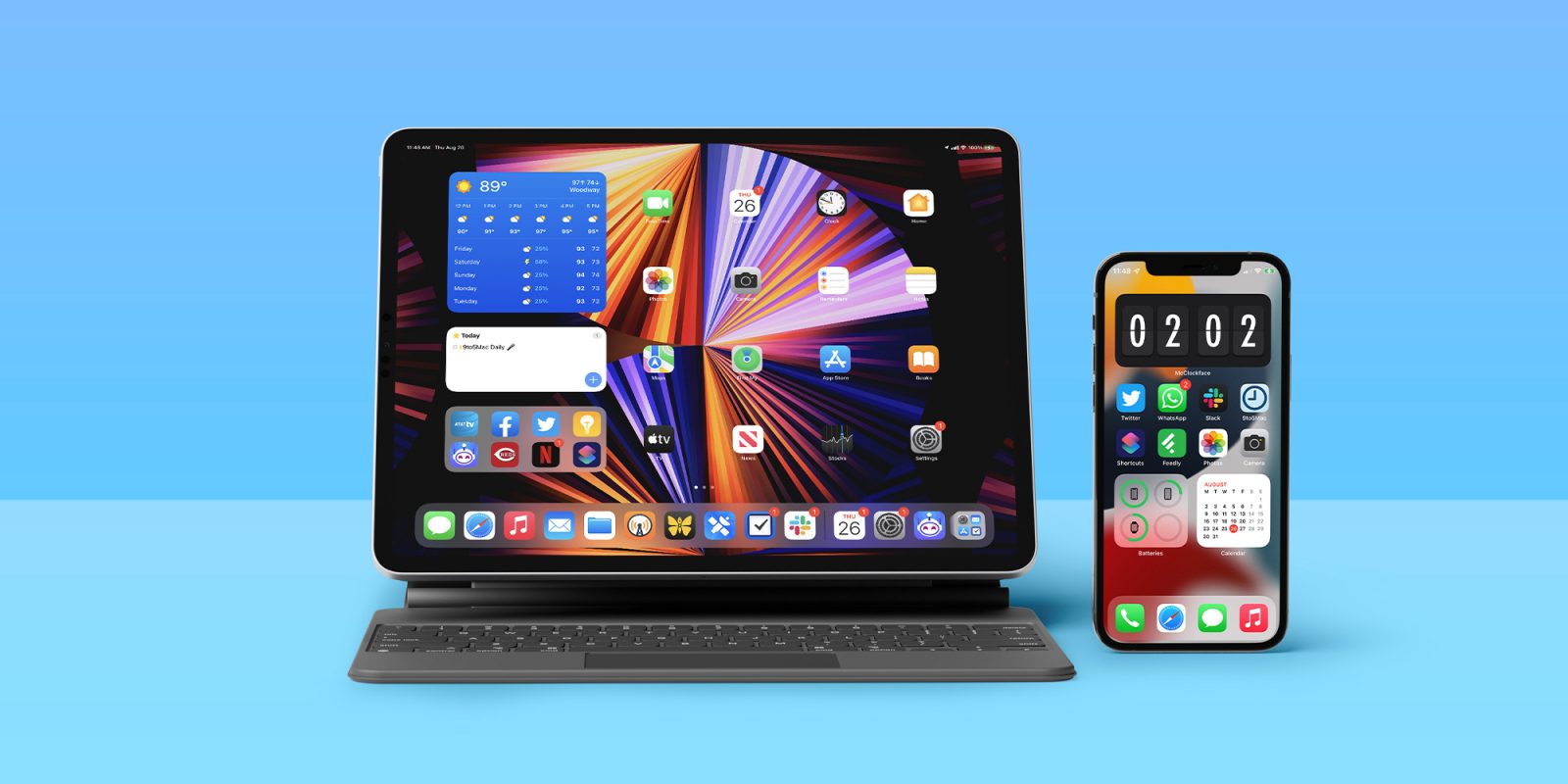
The Release Candidate version of iOS 15 and iPadOS 15 is here and the updates will be released to the general public on Monday. After three months of previewing Apple’s upcoming operating systems for the iPhone and iPad, here’s whether you should update or not.
Table of contents
What’s new with iOS 15 and iPadOS 15?
After the viral release of iOS 14/iPadOS 14 release thanks to the addition of widgets, there was a lot of anticipation for iOS 15 this year — but development challenges were compounded by the continued COVID-19 pandemic.
iOS 15 and iPadOS 15 focus on a pandemic world while preparing people all over the world to go back to their routines. With this update, users will get a new Focus mode, redesigned Safari, Weather, and FaceTime apps, and much more. iPhone 11 users or newer will even have the ability to track their phones even when turned off.
For iPadOS 15 owners, there are new tweaks for multi-tasking that make it easier to access the Split View and Slide Over features, as well as the new App Library and the ability to add widgets to the Home screen.
Home screen tweaks and Focus mode
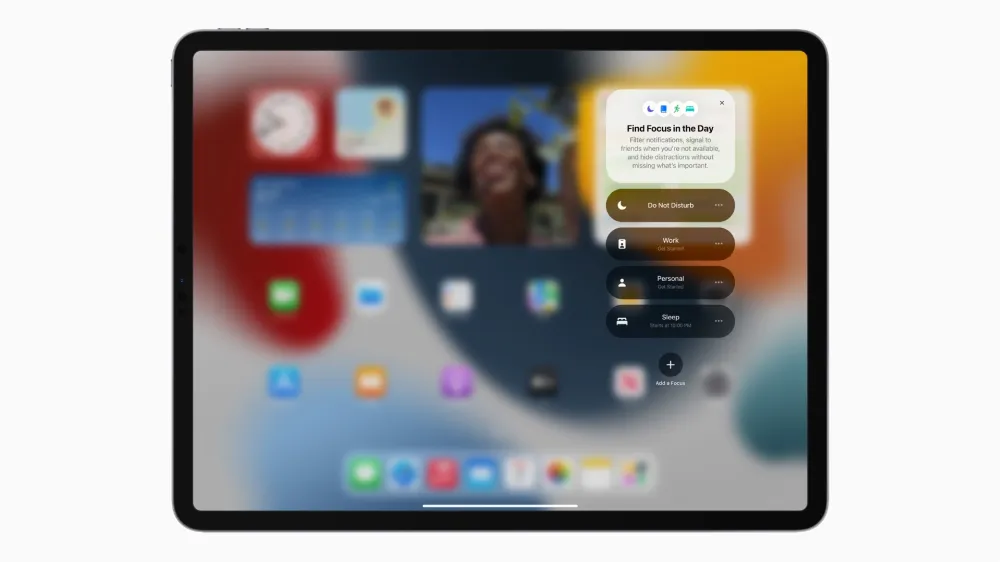
iPadOS 15 finally received the update Apple brought to the iPhone with iOS 14: a new and more customizable Home screen. It’s now possible to add widgets anywhere on your Home screen, delete apps and only show them on the App Library, and also customize what’s shown depending on the Focus mode you create.
For iPadOS 15, Apple also made it easier to use Split Screen and Slide over functions. Now, every time you open an app, you’ll see three dots on the top of the screen where you’ll be able to choose whether you want more apps running at the same time or not.
The new multi-tasking features in iPadOS 15 have become quite useful for me. Remember how Apple killed 3D Touch because no one knew how to use it? Split View and Slide Over weren’t always that intuitive either. With this three dots indicator, users will now know that they can easily open and split the screen with other apps.
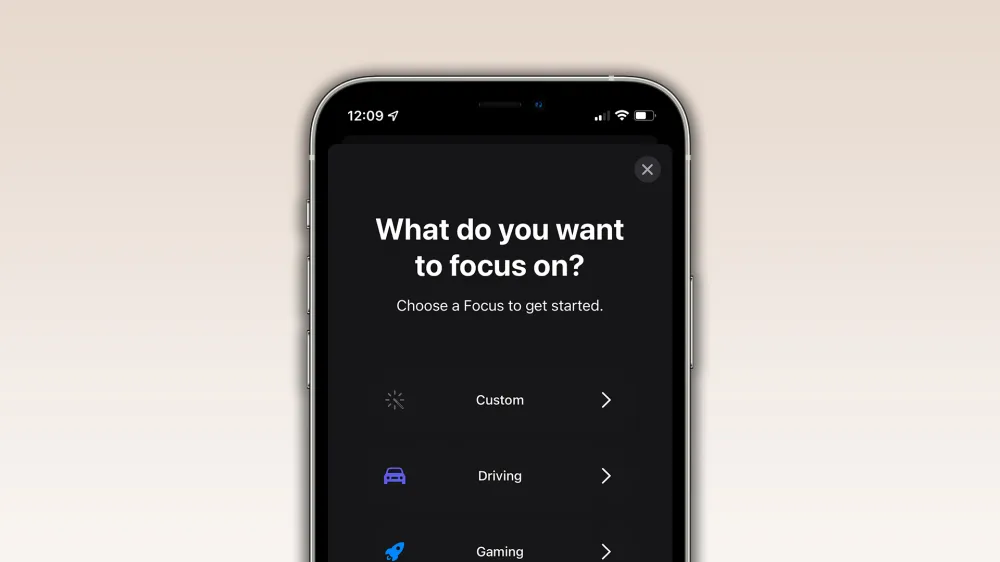
Focus mode in iOS 15 and iPadOS 15 is one of the greatest improvements Apple is bringing, as you can select what do you want to focus on depending on what you’re doing at the moment, such as working, sleeping, having personal time, playing games, or working out.
Currently, I use six different focus modes, including “Do Not Disturb,” “Personal,” Work,” “Sleep,” “Fitness,” and “Street,” when I don’t want to be interrupted while away from home. With beta over beta, the Focus function in iOS 15 is learning with my habits and already turning on one focus mode after another. It’s just great.
FaceTime, Safari, Weather, and Apple Maps have a new look

Familiar apps have also a new look. FaceTime looks more square but adds a new Portrait mode to blur your background in a call. There’s also a new Voice Isolation function, a better grid view with FaceTime Group, and people can join your conversation from the web or Android with a FaceTime link, which is pretty neat.
It’s important to notice how good these new mic modes are: if you’re using an AirPods, choosing the voice isolation mode is groundbreaking because you can wash dishes or be close to someone talking loudly, but the person on the other side of the call won’t hear anything aside from your voice. Apple’s implementation of this feature is quite impressive.
The Weather app has a new icon and everything looks more realistic with new animated backgrounds. There are also next-hour precipitation notifications so you can get a notification when rain, snow, hail, or sleet is about to start or stop. Apple’s team has put a lot of effort into the app and it does look good.
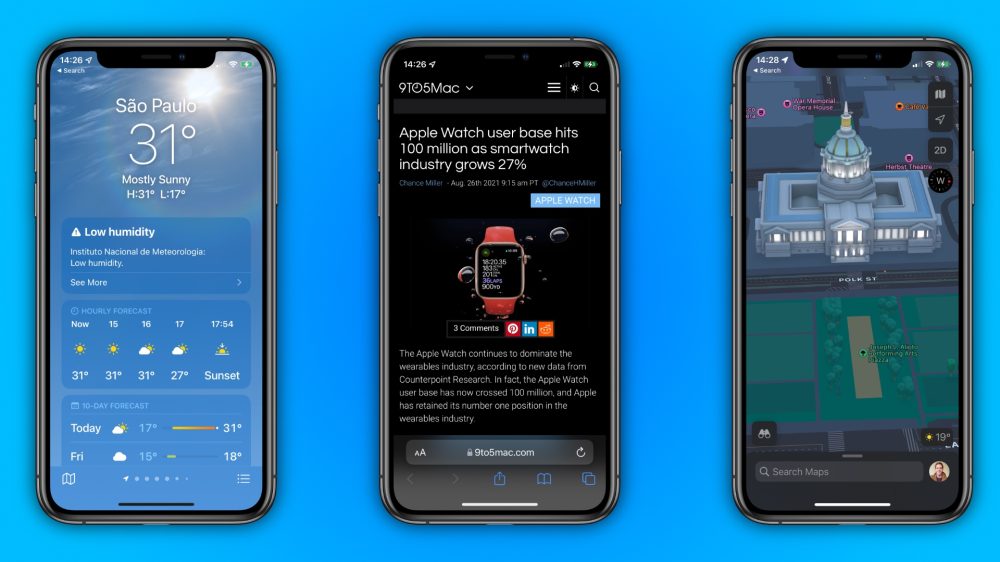
Safari, after all the controversy during the beta, has also a new design. While the design has proven to be controversial, I think it’s only a matter of time before people to get used to it. With iPadOS 15, you can have a “Compact Tab Bar,” which looks pretty great. Even still, if you don’t like what you see, there’s also the classic design, which you can learn how to go back here.
Last but not least, Apple Maps has incredible new maps for selected cities. San Francisco, Los Angeles, New York, and London have unprecedented detail for elevation, roads, trees, buildings, landmarks, and more. Users also can take advantage of new driving features, interactive globe, new place cards, and more.
Sharing is caring with iOS 15 and iPadOS 15
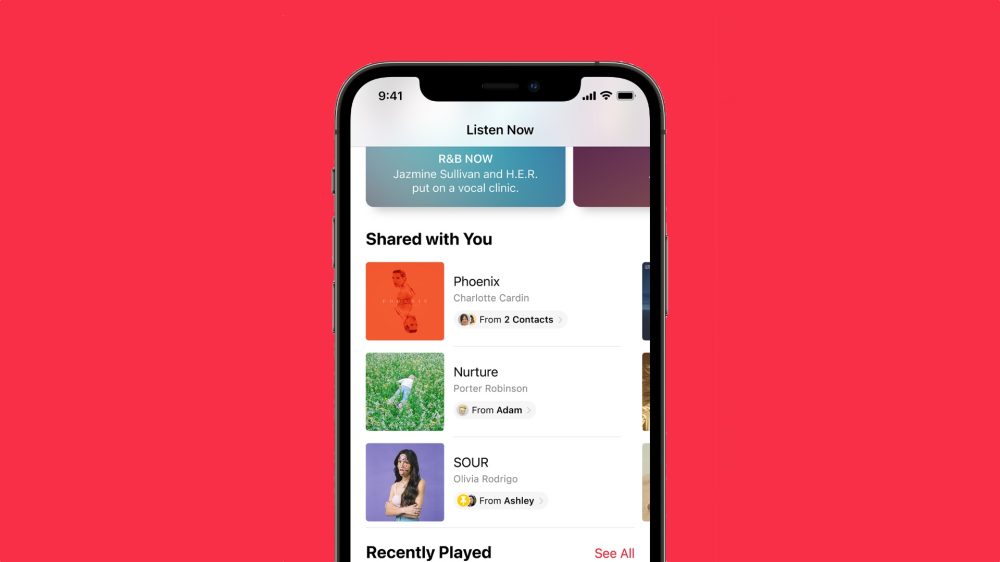
You’ll notice with iOS 15 and iPadOS 15 that some apps have a dedicated “Shared With You” section, including Music, Podcast, Safari, TV, iMessage, and Photos. With that, when something is shared with you in Messages, you’ll get a reminder in these apps to read, watch, and listen to what was sent to you.
If you click on the person’s name, iOS 15 will redirect you to the conversation on iMessage so you can reply with your thoughts. Nice, right? And doesn’t matter how long you take to watch/read/listen to something someone sent to you, you will be redirected exactly to the moment the person sent you the link.
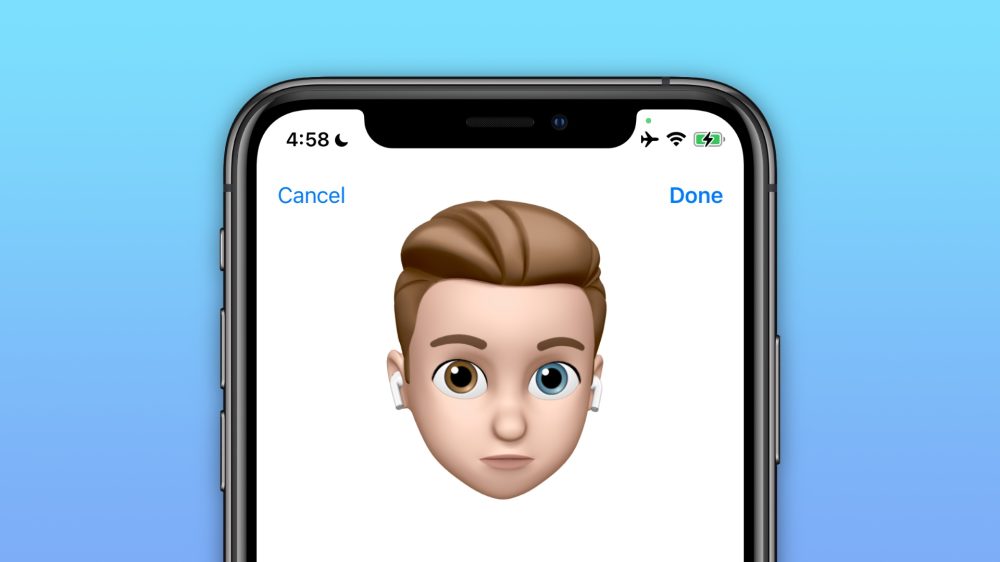
Also new for iMessage, there is new Memoji customization with clothes, more colors, and accessibility customizations include cochlear implants, oxygen tubes, and soft helmets. Even though it’s pretty minimum, I do like updating my Memoji every now and then and always look forward to new customization.
Also, when you send a bunch of photos on iMessage with iOS 15 and iPadOS 15, they look more compact with a collage you can swipe through and tap to view them all as a grid or add a quick Tapback. Finally, Apple fixed it.
Live Text and Siri

Live Text is another pretty big update for iOS 15 and iPadOS 15. When opening an image or your camera, you can find text and make a call, send an email, or look up directions with just a tap on the highlighted text in a photo.
It’s very intuitive to use and also very helpful as everything is now clickable. For example, if you see a sign on the street, just open your Camera app and click on the text to copy it.
With Live Text translation, users can also copy the image’s text and translate it into English, Chinese, French, Italian, German, Portuguese, and Spanish.
Siri also got a bit smarter and more useful as it adds on-device speech recognition so everything is processed on your iPhone and iPad. With that, Siri can finally perform many tasks without an internet connection. No more asking Siri to open an app and the personal assistant replying it can’t open the Music app as you don’t have an internet connection right now.